How to Send a Tumult Hype Animation to a Client as a Link
Published

When you export a Tumult Hype document with File › Export as HTML5 › Folder, you get two things: an .html file and a folder that ends in .hyperesources. The animation needs both. Send only the HTML file and your client sees a blank page. Send both by email and your client has to unzip them on a computer and open the file in a browser, which most clients won’t do, and can’t do on a phone.
The handoff that works is a link: put the export online once, and your client taps it on any device.
What the HTML file alone looks like
We tested this with a real Hype export, the gem animation from the open-source Mailspring app. Hype wrote an index.html of under 1 KB and a gem.hyperesources folder with 21 files: the Hype runtime, the generated scene script and the PNG layers. Zipped, the whole export is 98 KB.
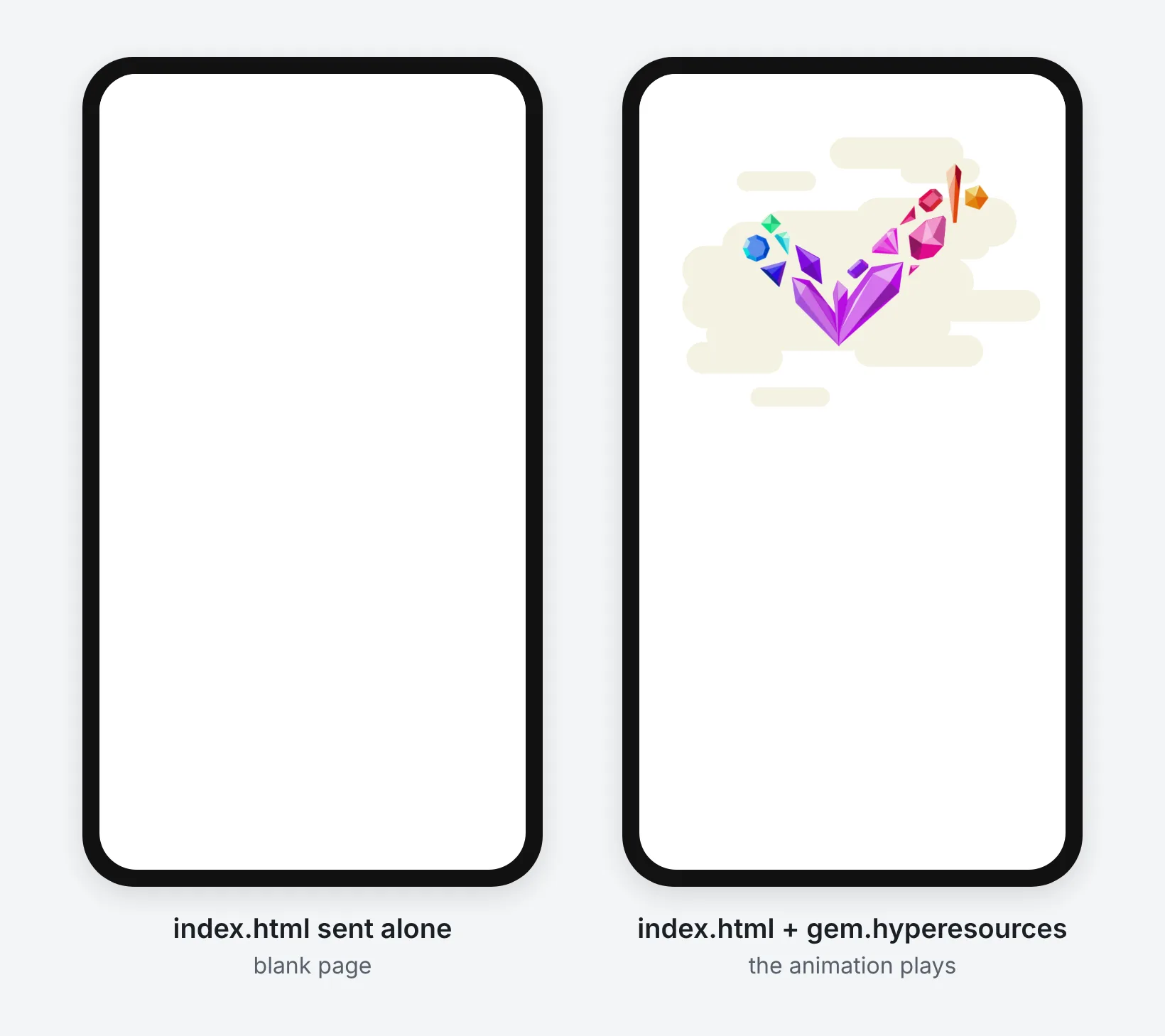
The HTML file is only a frame. The first thing it does is load the scene script from inside gem.hyperesources, and without the folder that request fails and nothing appears. There is no error message for your client to report, just a white screen.
This is not a Hype quirk. People exporting HTML5 from Adobe Animate describe the same thing: the export works, then stops as soon as the HTML file is moved away from its folder.
Why the usual ways break
| What you send | What your client sees |
|---|---|
Only the .html file | The blank page above |
| A ZIP by email | A file they have to unzip on a computer and open in a browser. On a phone it stays a ZIP |
| The HTML opened from iPhone Files or a WhatsApp preview | Text without JavaScript, so nothing moves. We tested this on iOS 26.2.1 |
| A Hype Reader preview | Works on your own device, but it is a preview, not something to send to a client |
| A link to the export on a web host | The animation, playing in their browser |
Send it as a link
Option 1: zip it and upload it
- In Hype, choose File › Export as HTML5 › Folder.
- In Finder, select the exported
.htmlfile and the.hyperesourcesfolder, right-click, and choose Compress. You getArchive.zip. - Drop the ZIP into any static host. On Litehost that is the upload page; copy the link it gives you.
Keep the HTML file and the folder side by side at the top of the ZIP. If the ZIP contains one HTML file, that file becomes the page. Folder and file names with spaces, like Layer 6 copy.png in our test, work.
At 98 KB, our test export fits easily in the 2 MB you can upload to Litehost without an account (sign in to keep the link past 15 minutes). Long animations with video or large images can go past it; the plans show the larger limits.
Option 2: publish straight from Hype’s Export menu
Hype supports export scripts that add entries to File › Export as HTML5. Our free script adds Litehost there: it zips the export, uploads it, copies the link and asks whether you want to keep it.
- Download the Litehost export script and unzip it. You can read the script first in its public repository on GitHub.
- In Hype, open Settings › Export and click the button that opens the export scripts folder (
~/Library/Application Scripts/com.tumult.Hype4/). - Move
Litehost.hype-export.shinto that folder. Hype lists it in the same settings pane. - Choose File › Export as HTML5 › Litehost. Pick where to save the ZIP; Hype keeps a copy there.
- When the dialog shows your link, it is already on your clipboard. Click Keep this link to sign in and save it.
The script is plain shell code with no Python, so it does not need Tumult’s Python enabler. It sends your export only to Litehost, and only when you pick the Litehost export.
Before you send the link
- Open it in a private window and let the animation play to the end.
- Open it on your phone. Our test scene is 600×500, and Hype wrote a
width=600viewport into the HTML, so the phone zoomed out and showed the whole scene. If your scene is larger or uses a different layout, check it on a real phone, or turn on Flexible Layout in Hype before exporting. - Tap every button or scene link you added.
- If the animation has sound, remember that phones block autoplay with sound until the viewer taps.
If the client asks for changes, export again. With the export script, pick Litehost again and send the new link; on a paid plan you can instead replace the files behind the link the client already has.