How to Open an HTML File on iPhone
Published
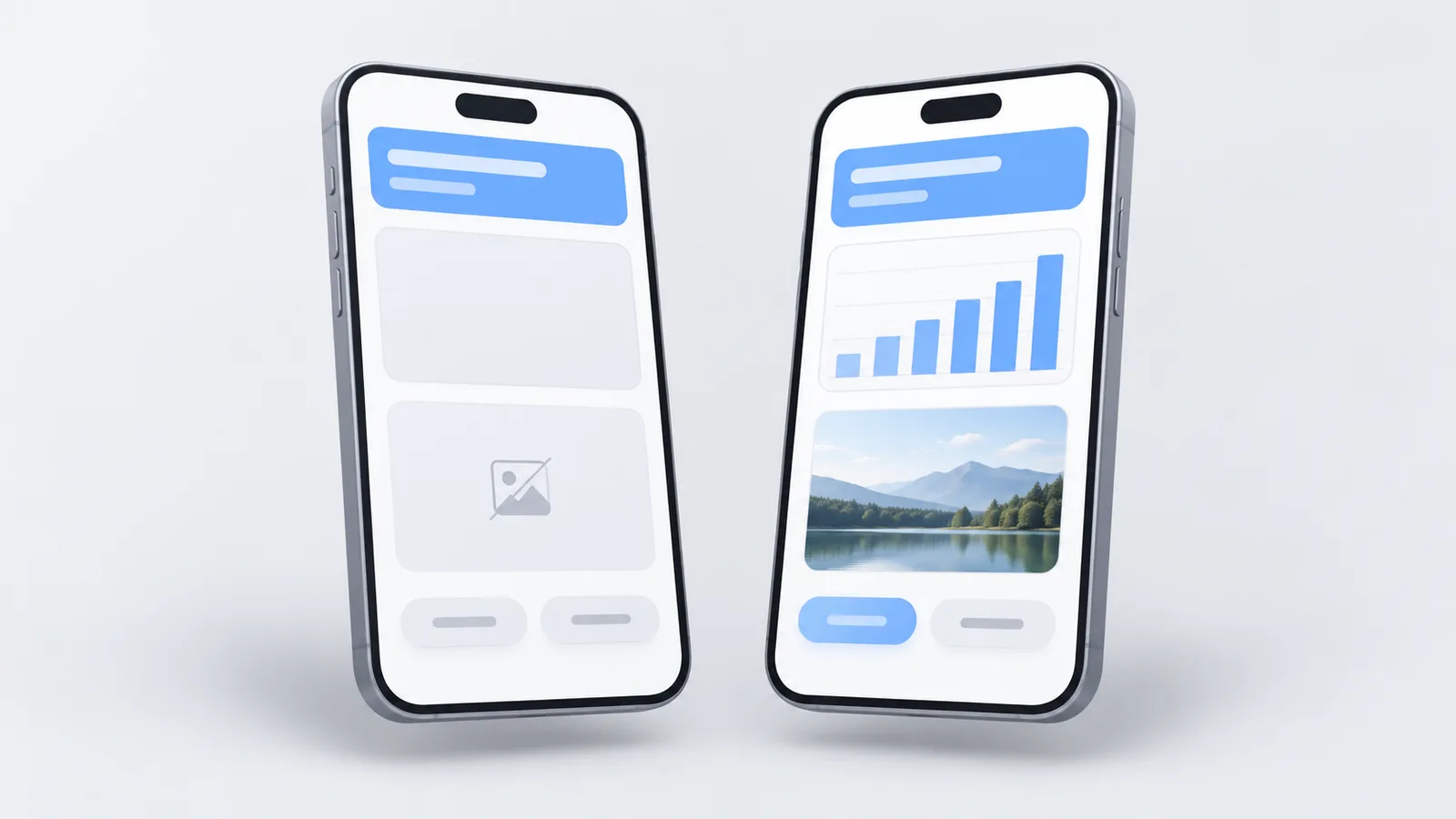
When you tap an HTML file on iPhone, you get a preview, not the page. The preview shows the text, but it leaves out images and anything that should move or react when you tap it. To see the whole page, open it from a link in Safari: ask whoever sent it for a link, open the file on a computer, or put it online yourself and open the link.
To try it now, drop the file into the box at the end of this page and open the link it gives you.
What the iPhone preview leaves out
We sent the same test file to an iPhone running iOS 26.2.1 on October 30, 2026, and opened it three ways:
| Opened from | Text and colors written in the file | Buttons, charts and other parts that react (JavaScript) | Images | A separate style file next to it |
|---|---|---|---|---|
| The Files app | Shown | Don’t work | Not shown | Ignored |
| Shown | Don’t work | Not shown | Not tested | |
| A link, opened in Safari | Shown | Work | Shown | Not tested |
So the file isn’t broken. The preview only reads the text inside it, and Safari only runs the full page when it comes from a web address.
One file or a folder?
Look at what you received in the Files app.
- One
.htmlfile: any of the options below works. - A folder or a ZIP with several files (an
.htmlfile plus images,.cssor.jsfiles): the preview shows even less, because the images and the style file are separate files it doesn’t load. Keep the files together and use option 2 or 3.
Option 1: ask for a link
This is the fastest fix when someone sent you the file. You can copy this:
It opens without pictures on my phone. Could you send it as a link?
A link also works for everyone else they send it to.
Option 2: open it on a computer
On a Mac or PC, double-click the file to open it in your browser. If it came as a ZIP, unzip it first and keep the files in the same folder. Choose this if the file is private and a computer is close by.
Option 3: put it online and open the link
If you need it on your phone now and nobody can send a link:
- Open the upload box at the end of this page in Safari.
- Choose the
.htmlfile. If it came with images or other files, choose the ZIP that contains them. - Open the link you get. The page opens in Safari as a web page.
In our test, the same file that showed a blank image and a dead button in the preview showed the image and ran its script when opened from the link.
Example: a report sent over WhatsApp
Lucía runs a small bakery. Her marketing freelancer sends her
bakery-october-report.html on WhatsApp before a call. When she taps it, she
sees the title and the numbers, but the logo is an empty box, the sales chart
is blank and the “This month / Last month” buttons do nothing.
She has no computer at the bakery, so she replies with the message from option 1. The freelancer uploads the file and sends a link. Lucía opens it in Safari, and the chart and the buttons work.
She could have uploaded it herself, and it would have worked too. But then the link is hers, and the freelancer can’t fix a mistake in the report at that same address.
If you’re the one sending HTML files
Send a link, not the file, and open the link on your own phone before you send it. How to share an HTML file so it opens as a page covers the steps, and the Upload HTML tool gives you a link in one go.
Where Litehost fits
Litehost gives an HTML file, or a ZIP with its images, a link that opens as a page in any browser, and the person opening it doesn’t need an account.
You don’t need Litehost if the sender can give you a link, if you can open the file on a computer, or if you open HTML files every day and would rather use a viewer app.