Google Drive Alternative for Client Delivery
Published
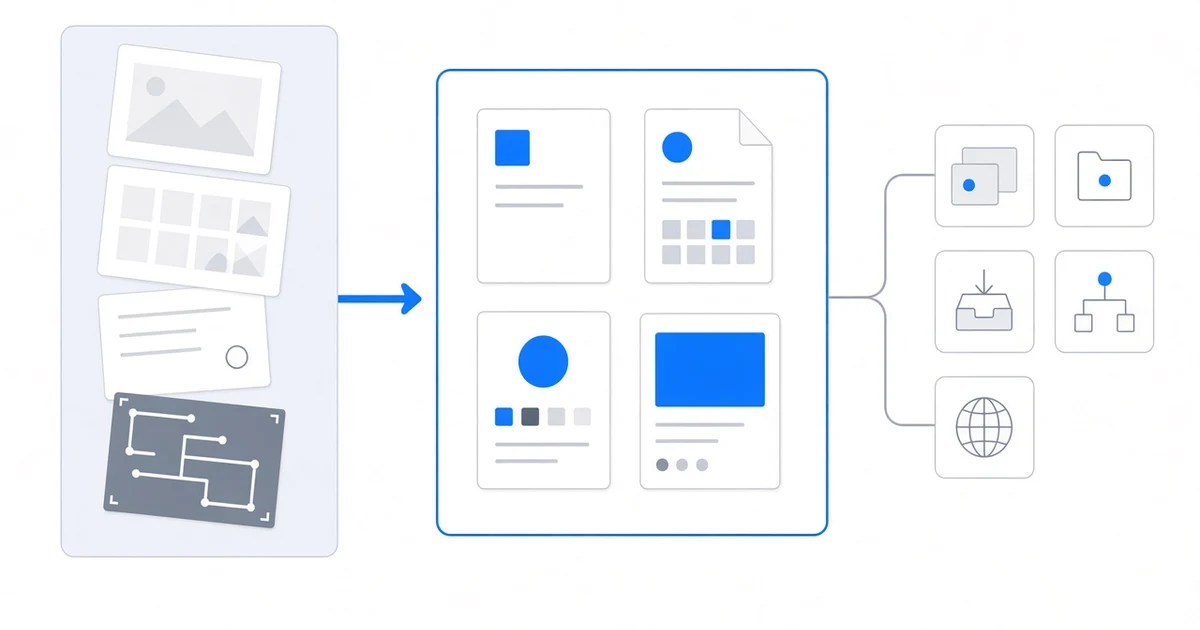
Define the final package, the client’s next action, and what they need to retain. Then choose the delivery method that fits—whether that is Drive, a transfer service, a client workflow, or a dedicated link.
Your client has approved the work. Your Drive still contains discovery notes, early concepts, review rounds, working files, temporary exports, and the final assets.
What should you send?
That is the decision to make before searching for a Google Drive alternative. The question is not whether Drive is good or bad. It is which material represents the completed project and what the client needs to do with it.
Do not choose a Google Drive alternative first. Define what stays as project material, what is final, what the client must do next, and what the client should retain. Then choose the delivery method that fits—even when the answer is Google Drive.
Five questions before choosing a tool
If the client needs to keep editing with you, a shared workspace fits. If the work is complete and the client needs one large download, a transfer service fits a different job.
Use five questions to find the right one:
- What stays as working material?
- What is actually final?
- What does the client need to do next?
- What should the client retain after the project?
- Which delivery method fits those requirements?
1. Decide what stays as working material
A working environment may contain:
- discovery notes and references;
- drafts and rejected directions;
- client feedback and review exports;
- temporary files;
- source files;
- approved deliverables.
Classify that material before organizing the handoff:
- Included: material the client is entitled to receive.
- Excluded: internal notes, rejected work, temporary exports, and duplicates.
- Final: the approved version of each deliverable.
- Still editable: files that remain part of an active collaboration.
If the client still needs to work inside the project, the workspace may remain the right environment. If the work is complete, the final package can be narrower.
2. Define what makes the package final
Name the milestone that turns project material into a deliverable:
- client approval;
- final payment;
- completion of a contract milestone;
- transfer of agreed source files.
Then settle formats and ownership. Are source files included, or only approved exports? Does the client receive one logo format or several? Is a review PDF still useful, or has the final guideline document replaced it?
Select the files that satisfy the milestone and agreement.
3. Name the client’s next action
Choose the primary thing the client needs to do after opening the delivery:
- View: open the completed work in a browser.
- Edit: continue changing the files.
- Approve: review work that is not final yet.
- Download: copy the package into local or company storage.
- Archive: retain an authoritative final set.
- Distribute: pass approved assets to teammates, vendors, or partners.
- Reuse: return to source assets for future work.
One package can support several actions, but the primary action should determine the delivery method.
4. Decide what the client should retain
Opening a delivery and retaining it are separate requirements.
Ask:
- Should the client keep its own copy?
- Should the link remain available, or can it expire?
- Will the client treat the destination as an asset library?
- Does the agreement require editable source files?
- Does the package need a manifest?
Persistent shared access, a one-time download, and a time-limited link lead to different choices. Decide how the client will keep the files instead of leaving that unclear.
5. Build the final package before selecting the delivery method
Once the boundary is clear:
- use descriptive file and folder names;
- remove rejected, temporary, and duplicate material;
- include only the agreed formats;
- state whether source files are included;
- add a short manifest when the package needs explanation.
Delivery choices can change with the files and the client. A client who needs editable assets may stay in the working tool; a client receiving final files may prefer a familiar folder. Large packages may need a short walkthrough, and an existing Drive workflow can work perfectly well.
Worked example: a restaurant identity handoff
Consider Maya, an illustrative independent brand designer. Her client has approved and paid for a restaurant identity project.
Maya’s working Drive contains:
- discovery notes and references;
- three concept directions;
- review-round PDFs;
- feedback screenshots;
- working Figma links;
- temporary exports;
- approved final assets.
The client needs to retain the brand guidelines and distribute the approved logos. The client does not need rejected concepts, feedback screenshots, or temporary exports.
Maya creates a separate final package:
START-HERE.txtwith the package contents and contact details;Brand-Guidelines.pdf;Logos/SVG/;Logos/PNG/;Social-Templates/;- source files only if the agreement includes them.
Now the delivery choice follows the client’s job:
- If the client will continue editing in Drive or using the existing shared asset library, Maya keeps the client in that workspace. If collaboration is finished and persistent storage and download are enough, she creates a final-only Drive folder.
- If the client needs one large download, Maya uses a transfer service.
- If the client should open the guidelines and selected assets through one browser link, Maya considers a client-ready handoff tool.
Maya, the restaurant project, and the exact file list are illustrative.
Choose the delivery method by job
Continue in the existing Google Drive workspace
Use the existing workspace when the client should keep working in it: continued collaboration, editable asset access, or an established shared asset library. The project history remains relevant because the workspace itself is part of the ongoing job.
Create a final-only Google Drive folder
Create a separate final folder when collaboration is complete, Drive is familiar to the client, and persistent storage and download are enough. Copy only the selected deliverables into it, name it for the project and delivery milestone, and add a short manifest when formats or source files need explanation.
This gives the client a final package without exposing the working project folder.
Use a transfer service
Use a transfer service when the client needs to download and retain a large package once, without ongoing editing or a persistent presentation layer. Check the actual expiry and download conditions before sending.
Use a client workflow or portal
Use a workflow or portal when approval, status, payment-controlled release, or ongoing communication is still central. If approval is complete and the client only needs the finished files, that workflow is solving more than the handoff requires.
Use a dedicated client-ready link
Use a dedicated link when the package is final, the working workspace should remain internal, and the recipient should open a selected set of deliverables in the browser. Its access and expiry still need to match how long the client needs the files to remain available.
This is where Litehost can enter the process. A signed-in sender can select finished files, name the project, choose a client-link slug, and create a link. Litehost is not the working workspace or a full Google Drive replacement.
On September 15, 2026, we tested a four-file Litehost link on the Free plan. It opened while logged out and supported individual downloads and Download All. After we replaced the project, the recipient URL stayed the same and showed the new version; the old version was no longer visible publicly at that URL. The link showed about 23 hours and 50 minutes until expiry.
In that tested flow, the client could return to the same address after the files were updated. This does not establish the behavior of every plan, access mode, file collection, or configuration. Confirm access, download, replacement, and expiry conditions before sending.
Test the handoff as the recipient
Inspect the selected method outside your normal signed-in workspace:
- Does it open under the intended access conditions?
- Can the client identify what is final?
- Are internal and rejected files absent?
- Can the client complete the primary action?
- Do downloads work when required?
- Is mobile behavior relevant and usable?
- Does the expiry match how long the client needs access?
When those checks pass, send one message stating what is included, what the client should do next, and how long the delivery will remain available. Record what you delivered.
Final handoff decision
- Is the project still collaborative?
- If the client should continue editing, accessing editable assets, or using the shared library, continue in the existing Drive workspace.
- If collaboration is complete, continue to the next question.
- What files are actually final?
- Select the approved deliverables. Exclude working and rejected material. Confirm whether source files are included.
- What does the client need to do next?
- Choose the primary action: view, edit, approve, download, archive, distribute, or reuse.
- What must the client retain?
- Decide whether the client needs its own copy, persistent shared access, or a time-limited delivery.
- What access or security requirement applies?
- Follow the contract or organization’s requirement for who can open the delivery and under what conditions.
- Which method fits?
- Existing Drive workspace for continued work.
- Final-only Drive folder for familiar, persistent storage and download after collaboration ends.
- Transfer service for a one-time large download.
- Client workflow or portal for approval, status, release, or communication.
- Dedicated client-ready link for a selected browser-first handoff.
- Test the selected handoff as the recipient.
- Verify access, final-file visibility, the primary action, downloads when required, mobile behavior when relevant, and expiry.